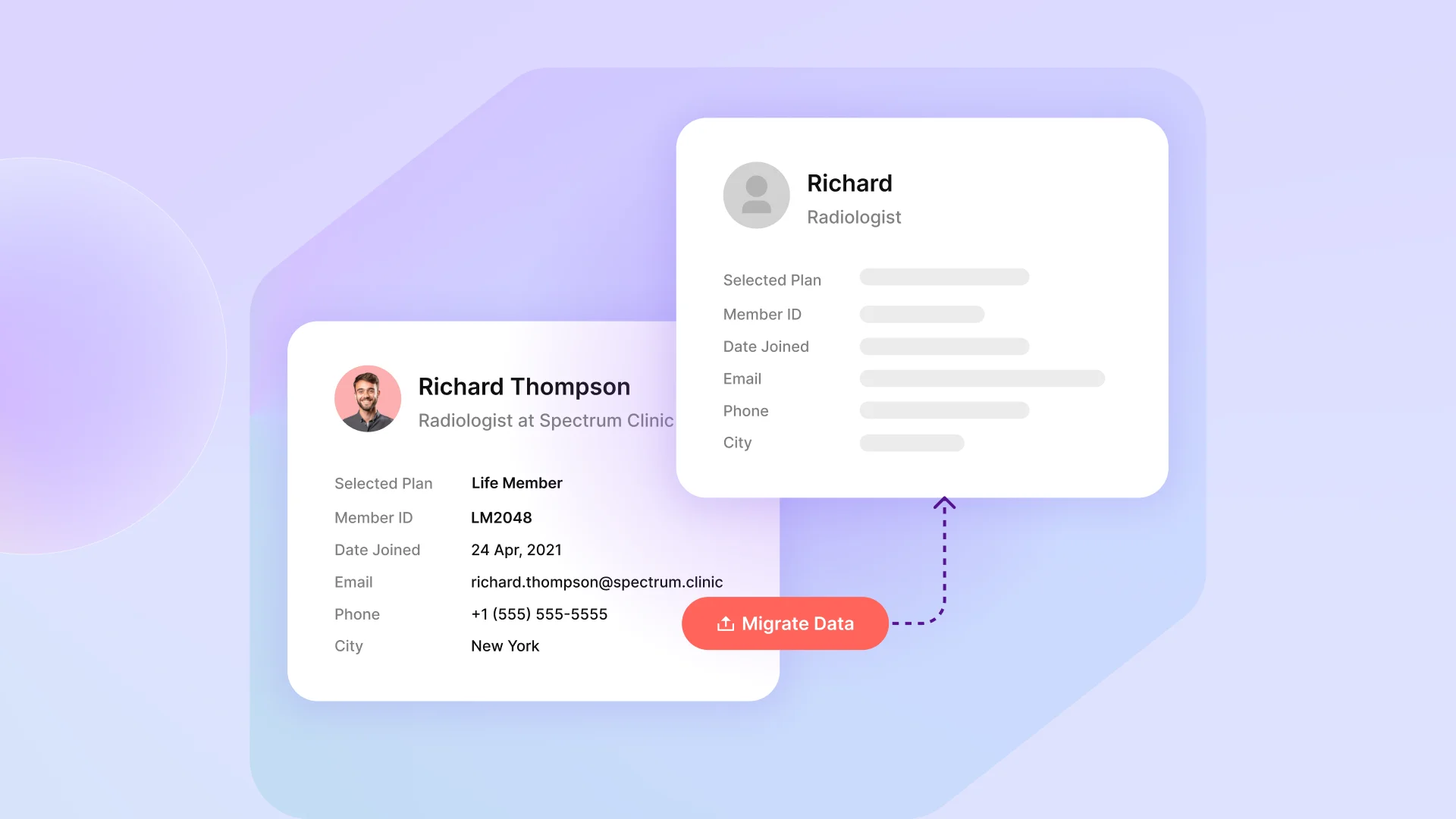
We’ve seen it happen more than once. An association spends weeks preparing to switch platforms, goes live on the new system, and then the emails start arriving. “I can’t log in.” “My membership history is gone.” “You’ve got my old address.” “Why am I being charged again?”
A data migration that looked clean on the surface quietly dropped records, duplicated members, or scrambled renewal dates. And because no one ran a proper reconciliation before going live, the problems only surfaced after real members were affected.
The good news: every single one of these issues is preventable. Member data migrations fail not because they’re technically complex, but because they skip the preparation steps that catch errors before they become problems.
This playbook walks you through the most common migration mistakes associations make, and exactly what to do instead, whether you’re moving from spreadsheets, a legacy AMS, or a patchwork of disconnected tools.
The single biggest migration risk isn’t the import itself. It’s going live before you’ve verified the data on the other side.
Mistake #1: Migrating Dirty Data
Most legacy systems and spreadsheets accumulate years of inconsistency. Duplicate member entries, outdated email addresses, mismatched membership types, blank required fields. If you migrate this data as-is, you’re just moving the mess into a new system.
Clean before you migrate, not after. Here’s what that looks like in practice:
- Deduplicate first. Run a check for members with the same email address, name, or member ID. Decide which record is authoritative before the import, not after you’ve got 800 duplicates in a new platform.
- Standardise field formats. Phone numbers, postcodes, and dates need consistent formatting. “01/03/2024” and “March 1, 2024” will behave differently depending on how your new system reads them.
- Fill in mandatory fields. Most membership management platforms require certain fields to be populated (email, membership type, status). Blank values will either cause import errors or create ghost records.
- Archive lapsed or inactive members separately. Don’t migrate every record you’ve ever had. Decide upfront which members are active, which are lapsed but worth retaining, and which can be archived. Migrating everything creates noise.
A practical rule: spend at least as much time cleaning your source data as you spend on the actual import. For most associations, that means two to three days of data hygiene work before you touch the migration tool.
Mistake #2: Skipping the Data Audit Before Export
Before you export anything from your current system, you need to know exactly what you have. This sounds obvious, but most teams skip it and discover the gaps mid-migration.
Run a pre-migration audit
Pull a full member count from your current system and document it. This becomes your baseline. Every number you verify after migration gets checked against this baseline.
Your audit should capture:
| Data category | What to document |
| Total member records | Exact count, broken down by membership type |
| Active vs lapsed vs expired | Numbers for each status |
| Payment and renewal records | Last payment date, amount, renewal date |
| Custom fields | Any association-specific fields that need to map across |
| Linked records | Events attended, certifications earned, forum activity |
Know what your new platform can actually receive
Not all AMS platforms accept the same data structures. Some don’t support custom fields out of the box. Others have limits on historical payment records. Before you export, confirm with your new platform exactly which fields it accepts, in what format, and what the import limits are.
This is where a lot of associations lose data they didn’t know they were going to lose. They export everything, attempt the import, and find that 15 custom fields simply have nowhere to go.
Mistake #3: Poor Field Mapping
Field mapping is where migrations get quietly broken. You export a column called “Membership Level” from your old system, but your new platform calls it “Plan Type” and expects different values. The import succeeds without errors, but 200 members now have blank membership types.
The fix is a field mapping document. Before you run a single import, create a simple spreadsheet that shows:
- Source field name (what it’s called in your old system)
- Source field values (the actual data, e.g. “Gold”, “Silver”, “Individual”)
- Destination field name (what it’s called in the new platform)
- Destination field values (what the new platform expects, e.g. “Premium”, “Standard”, “Individual”)
- Transformation needed (any changes required to make the data match)
Go through every column in your export file and map it explicitly. Fields that don’t have a clear destination need a decision: create a custom field in the new system, store the data elsewhere, or accept that it won’t migrate.
Don’t assume that identical column names mean identical data structures. A “Status” field in one system might use “Active/Inactive” while another uses “1/0”. Always check the values, not just the labels.
Mistake #4: No Test Migration
Running your first import against live data is one of the most common and most avoidable mistakes. If something goes wrong, you’re now dealing with a corrupted live database, and rolling back is painful.
How to run a test migration properly
- Export a sample dataset. Take a representative slice of your member data: 50 to 100 records that include different membership types, statuses, and edge cases (members with missing fields, unusual characters in names, long email addresses).
- Import into a sandbox environment. Most modern platforms let you test in a staging or sandbox environment before touching production. If yours doesn’t, ask your platform provider for one.
- Verify the results manually. Don’t just check that the import completed without errors. Open individual records and compare them against the source data. Check that renewal dates, membership types, and payment histories look right.
- Document what breaks. Any field that doesn’t import correctly, any record that comes through malformed, any value that gets truncated or dropped. Fix these in your source data or your field mapping before running the full import.
- Repeat until clean. Run the test migration as many times as needed. A clean test run on 100 records gives you high confidence that the full import of 5,000 records will behave the same way.
The test migration isn’t a formality. It’s the step that catches 80% of the problems that would otherwise surface after go-live.
Mistake #5: No Post-Migration Reconciliation
You’ve imported everything. The platform says it succeeded. You’re done, right?
Not yet. The reconciliation step is what separates a migration you’re confident in from one you’re hoping went well.
The reconciliation checklist
Run these checks immediately after your full import, before you go live or notify members:
- Record count match. Total members in new system = total members in your pre-migration audit. Any discrepancy needs to be investigated before launch.
- Status distribution check. The ratio of active, lapsed, and expired members should match your source data. If you had 1,200 active members before, you should have 1,200 active members after.
- Spot-check individual records. Pick 20 to 30 members at random, including a mix of long-standing members, recent joiners, and members with complex histories. Compare their records field by field against the source data.
- Renewal date verification. This is the field most likely to get scrambled. Check a sample of upcoming renewal dates to confirm they’ve migrated correctly. A wrong renewal date triggers incorrect billing, which is the fastest way to lose member trust.
- Payment history integrity. Verify that historical payment records are present and accurate for a sample of members.
- Linked data check. If you migrated event registrations, certifications, or forum activity alongside member profiles, spot-check that these are correctly linked to the right member records.
If your record counts don’t match, stop. Don’t go live until you’ve found the missing records and resolved the discrepancy.
Mistake #6: No Rollback Plan
Even with perfect preparation, things can go wrong. A rollback plan means you can recover quickly without members ever noticing.
Before you run the full migration, do three things:
- Export a complete backup of your source data. Store it somewhere separate from both your old and new platforms. A CSV export in cloud storage is fine. The point is that you have a clean, timestamped copy of the data as it existed before migration.
- Keep your old system accessible. Don’t cancel your old platform subscription until you’ve been live on the new one for at least 30 days and have verified everything is working correctly. You may need to reference it for individual records.
- Define your rollback trigger. Agree in advance on what would cause you to roll back. For example: more than 5% of records missing, renewal dates incorrect for more than 50 members, or payment history absent for a significant portion of active members. Having a pre-agreed threshold removes the pressure of making that call in the moment.
A rollback plan doesn’t mean you expect to fail. It means you’ve thought through the worst case and have a clear path out of it.
Your Migration Sequence, Start to Finish
Putting it all together, here’s the sequence that gives you the best chance of a clean, zero-record-loss migration:
Phase 1: Prepare (1-2 weeks before migration)
- Run a full pre-migration audit and document your baseline record counts
- Deduplicate and clean your source data
- Build your field mapping document
- Confirm with your new platform which fields it accepts and in what format
- Export a complete backup of your source data
Phase 2: Test (3-5 days before go-live)
- Export a representative sample of 50-100 records
- Run a test import in a sandbox environment
- Manually verify results against source data
- Fix any mapping errors or data issues
- Repeat until the test import is clean
Phase 3: Migrate
- Run the full import
- Immediately run your reconciliation checklist (record counts, status distribution, spot checks, renewal dates, payment history)
- Investigate and resolve any discrepancies before going live
- Do not notify members or go live until reconciliation passes
Phase 4: Go Live and Monitor
- Switch members over to the new platform
- Keep your old system accessible for 30 days
- Monitor for member-reported issues in the first two weeks
- Run a secondary reconciliation check at the 7-day mark
A well-prepared migration for a mid-sized association (1,000 to 5,000 members) typically takes two to three weeks from start to go-live. Rushing that timeline is where most of the problems we described above come from.
The associations that migrate without losing records aren’t the ones with the most technical expertise. They’re the ones that treat preparation as the job, not the import itself.
Migrating to Communa? Go Live Within Two Days.
If you’re planning a move to a new association management platform, migrating to Communa is simpler and faster than most associations expect – and that’s not a caveat, it’s by design.
Most of the steps in this playbook exist because migrations are typically a self-managed process. You’re responsible for cleaning the data, mapping the fields, running test imports, and reconciling the results. That’s a significant lift on top of your day job.
With Communa, it works differently.
Our virtual concierge team takes ownership of the migration from day one. Here’s what that looks like in practice:
- You share your data. Export your member records from your current system – spreadsheet, legacy AMS, or whatever format you’re working with – and hand it over to us.
- We clean, map, and import. Our team handles the data hygiene, field mapping, and import process. We flag any issues and resolve them before anything goes live.
- We verify before you do. The reconciliation checks described in this playbook? We run them on your behalf. You review the results, not the process.
- Your community goes live in under two days. From the moment we receive your data to the moment your members can log in, the typical turnaround is less than 48 hours.

You don’t need to project-manage the migration, troubleshoot import errors, or spend two weeks in spreadsheets. Just bring your data and we’ll take it from there.
This is particularly useful for associations that are moving away from a legacy system with years of accumulated data, or those that have been managing members across multiple spreadsheets and tools. The messier the source data, the more valuable it is to have an experienced team doing the heavy lifting.
Get in touch and our team will walk you through every step.
Frequently asked questions
Yes. Creating a complete backup is one of the most important steps. It ensures records can be restored if any issue occurs during the migration process
The migration team should typically include association administrators, IT staff, database managers, vendors, and key stakeholders responsible for membership operations.
After migration, associations should compare record counts, test member logins, verify financial data, review reports, and conduct random audits to ensure data accuracy.
Not always. Associations should prioritize active and operationally important records while archiving outdated or irrelevant data separately if needed.
Leave a Reply